How to Transfer Music to an Old MP3 Player
An old player may appear as a drive and still require a separate library tool for music. Start with its model number and manual before choosing a cable or application.
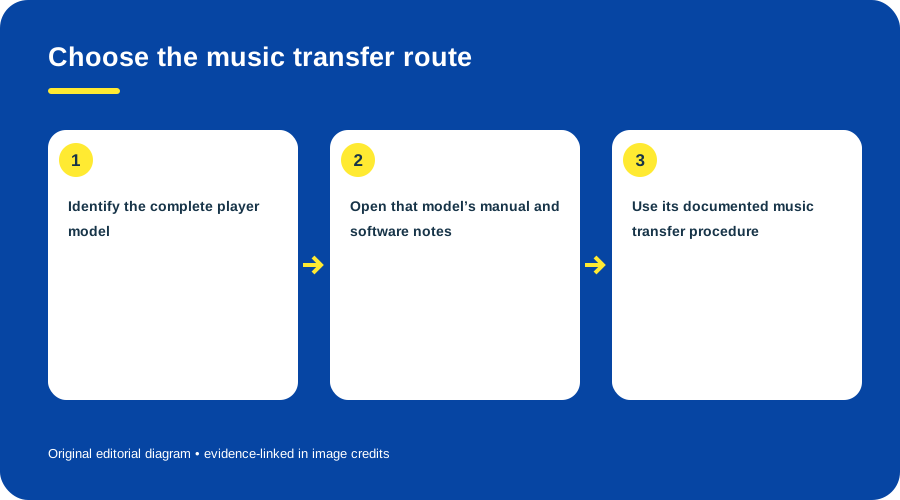
Choose the music transfer route. Original diagram by Things To Do Your Thing; facts are traced to G01-S1, G01-S2.
Choose the route
- Identify the complete model and suffix. Search the manufacturer support page for that code; similarly named models may use different transfer systems.
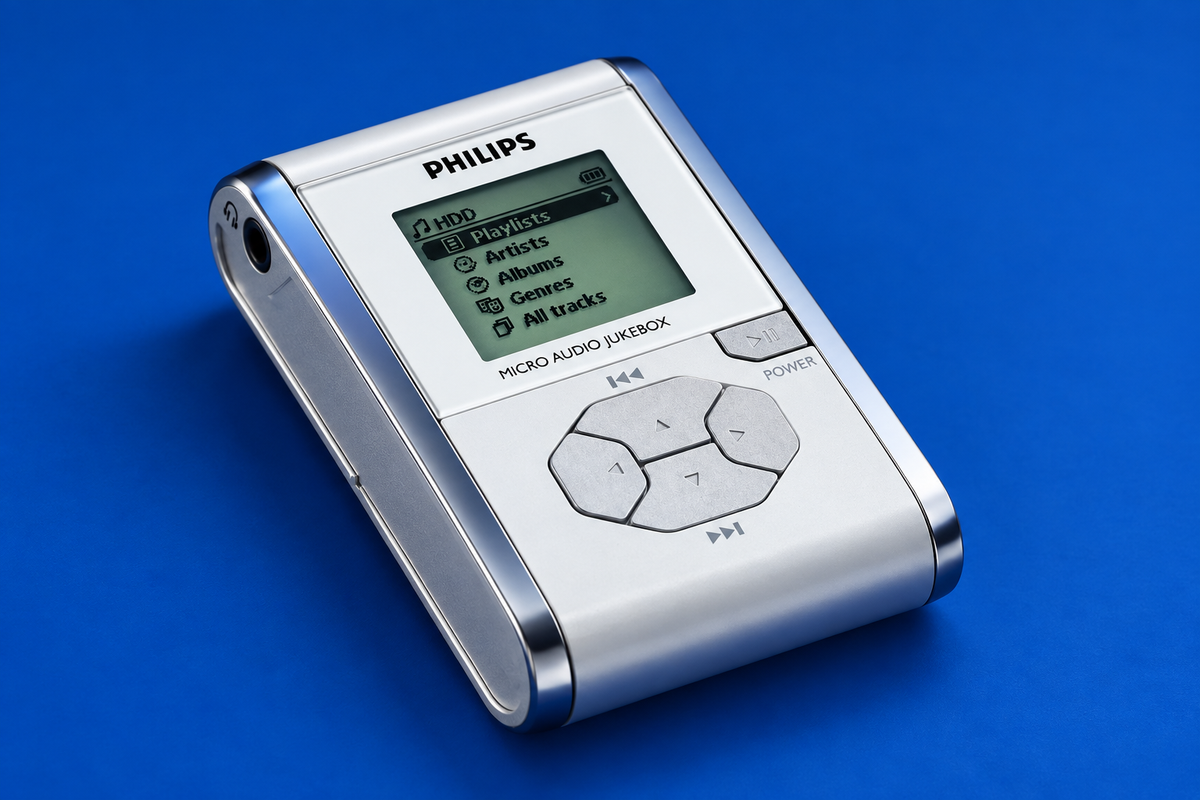
- Check whether the device needs a music database. On the iRiver H120, copy files through its USB-drive connection, then use iRiver Manager to update/rebuild the Artist/Album/Genre/Title database. The HDD060 and HDD100 use Philips DMM for playable music; Explorer is for general files and those copied music tracks do not play from the music library. (H120 manual; HDD060 manual; HDD100 manual)
- Choose the documented route, not just the visible connection. A mounted drive can still need a database refresh; a proprietary music path can reject tracks copied through Explorer. Use the precise instructions for that exact model and firmware.
- Follow the manual’s order. Use the model-specific sequence: for an H120, the manual describes connecting as a USB drive and updating the database after file changes; for HDD060/HDD100 music, use the DMM path and keep Explorer for general files. Follow each manual’s disconnect instruction.
- Check format and host requirements. USB alone does not identify drag-and-drop, MTP, a music database or proprietary software.
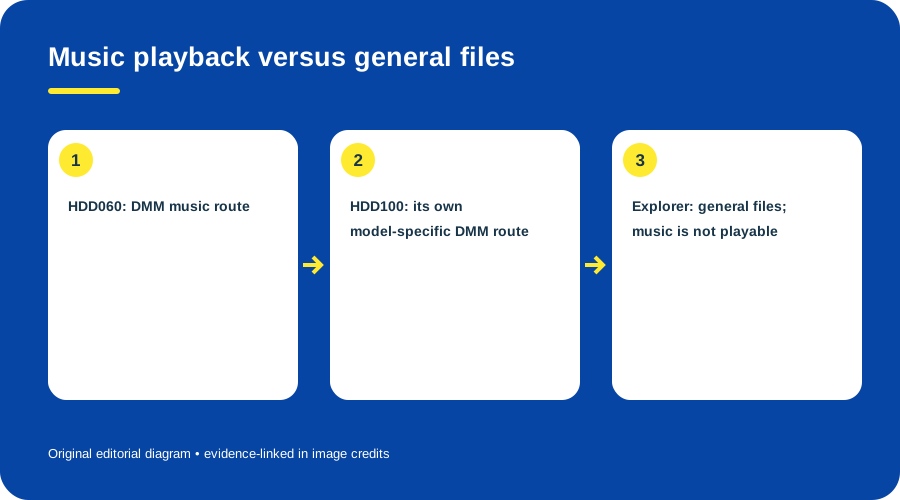
Music playback versus general files. Original diagram by Things To Do Your Thing; facts are traced to G01-S1, G01-S2.
If it is not recognized
Try a known data-capable cable and a direct computer port. Then check the system device list, exact manual’s driver requirements and manufacturer support. Avoid repackaged installers with unclear origins.
The cited HDD060/HDD100 procedures are historical. No current Windows or macOS transfer was tested, so compatibility remains unknown. See the Philips HDD060 guide.
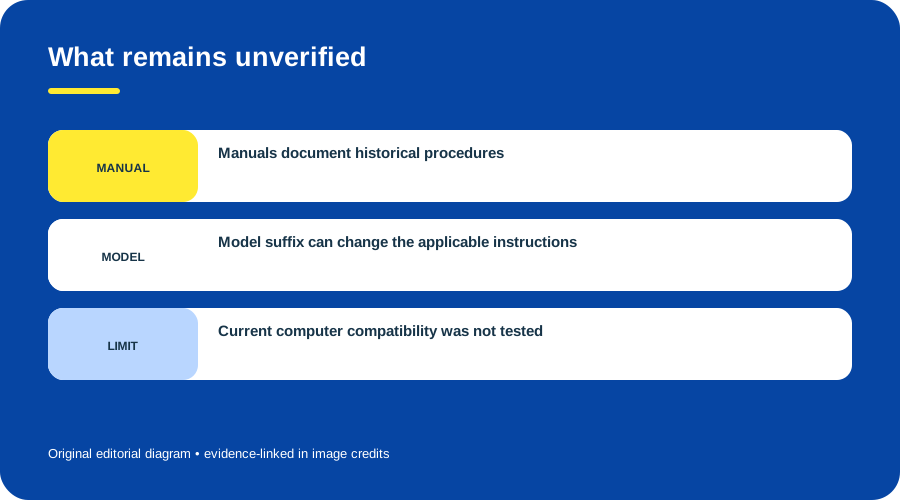
What remains unverified. Original diagram by Things To Do Your Thing; facts are traced to G01-S1, G01-S2, G01-S3.
Sources & image credits
- G01-S1 Philips HDD060 User Manual — pp. 3-4 DMM transfer; p.10 external storage; pp.24-25 formats/specs
- G01-S2 Philips HDD100 User Manual (HDD100_ENG) — pp. 6, 11-12 and 31: DMM, connection and transfer
- G01-S3 iHP-120 User Manual — Printed pp. 2, 5-7, 17-19, 28: USB 2.0/file transfer, historical Windows recognition and iHP Manager caveat, stock supported formats, charging, source selection and recording controls, file destinations/cutoffs, optical sample-rate requirement, full technical specifications
The diagrams are original illustrations by Things To Do Your Thing; their evidence and rights notes are recorded in the image ledger.
Diagram credits
- G01-I-PATH — Choose the music transfer route. Original diagram by Things To Do Your Thing; facts are traced to G01-S1, G01-S2. Evidence reference: Philips HDD060 User Manual, Philips HDD100 User Manual (HDD100_ENG).
- G01-I-COMPARISON — Music playback versus general files. Original diagram by Things To Do Your Thing; facts are traced to G01-S1, G01-S2. Evidence reference: Philips HDD060 User Manual, Philips HDD100 User Manual (HDD100_ENG).
- G01-I-EVIDENCE — What remains unverified. Original diagram by Things To Do Your Thing; facts are traced to G01-S1, G01-S2, G01-S3. Evidence reference: Philips HDD060 User Manual, Philips HDD100 User Manual (HDD100_ENG), iHP-120 User Manual.